
Home / How-to & tips / Set up Touch ID properly on iPhone Duo
How-to & tips
Set up Touch ID properly on iPhone Duo
iPhone Duo has no Face ID, so the Touch ID sensor in the side button does most of the work, open or closed. Here's how to enroll the right fingers, what Touch ID covers, when the passcode still wins, and what to try when it stops recognizing you.
Key facts
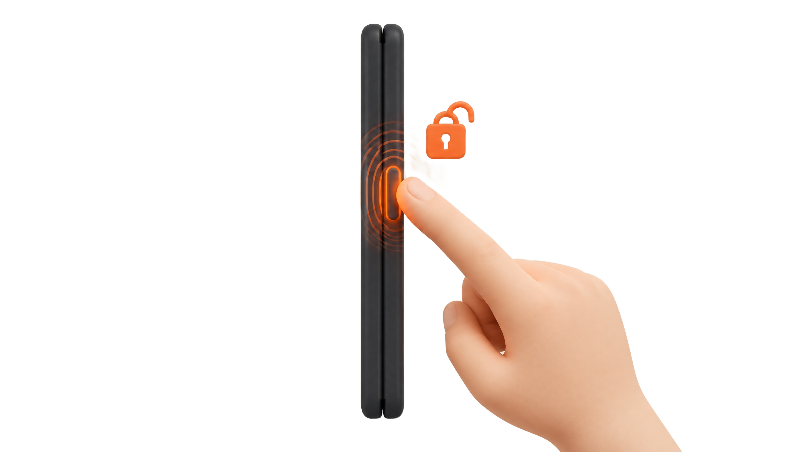
Open Settings > Touch ID & Passcode, tap Add a Fingerprint and follow the prompts; Apple allows up to five fingerprints. Apple says the side-button sensor works whether iPhone Duo is open or closed, and Tech Advisor recommends enrolling several fingers because your grip changes between the two.
Apple's iPhone Duo uses Touch ID instead of Face ID, and the fingerprint sensor lives in the side button. Apple's iPhone Duo spec page describes a "fingerprint sensor built into the side button" and doesn't list Face ID.
Touch ID only recognizes the fingers you enroll, so this step matters more than it did on a Face ID iPhone. If you're still mid-setup, start with how to set up a new iPhone Duo or how to transfer from another iPhone, then come back to add more fingers.
Where the sensor is, and does it work folded?
Touch ID is part of the side button. BGR's review describes the button as slightly raised from the frame, so your thumb can find it by feel (BGR).
Apple's iPhone Duo announcement says Touch ID offers consistent authentication whether iPhone Duo is open or closed. Reviewers agree: Macworld's reviewer wrote that it "unlocks reliably whether open or closed" (Macworld), and Tech Advisor says it works whichever screen you're using (Tech Advisor).
One layout change to know about: Macworld reports that Apple moved the volume keys to the top edge, which its reviewer found awkward. The full button list is in our iPhone Duo full specifications.
How many fingers, and which ones?
Apple's Touch ID support document says you can enroll up to five fingerprints, and that more prints may slightly slow recognition. It's Apple's general Touch ID guide, written around the Home button and iPad top button, but its Touch ID & Passcode menu matches the one MacRumors shows on iPhone Duo.
There's a small security trade-off. Apple's Platform Security guide puts the chance of a random person matching one enrolled fingerprint at less than 1 in 50,000, rising to as much as 1 in 10,000 with five fingerprints.
So which five? Tech Advisor recommends registering several fingers because your grip changes depending on whether the Duo is open or shut. BGR's reviewer says Apple lets you enroll fingers for the different ways you hold the Duo, and that enrolling the lower part of his index finger, the part that rests on the button, made unlocking noticeably faster.
A sensible starting set, as a suggestion rather than anything Apple prescribes: the thumb you use one-handed with the Duo closed, the finger that meets the button when it's open, and the same two on your other hand. That leaves one slot spare.
What Touch ID covers, and when the passcode still wins
Apple's Touch ID document lists unlocking the phone, approving purchases in the iTunes Store, App Store and Apple Books, and Apple Pay in stores, in apps and on websites in Safari, each with its own switch. Apple says you can also use your iPhone's Touch ID to complete Apple Pay website purchases on a Mac.
Touch ID doesn't retire your passcode. According to Apple's Platform Security guide, the passcode is required after the phone is turned on or restarted, when it hasn't been unlocked for more than 48 hours, after five unsuccessful match attempts, and for software updates and erasing the device, among other cases.
Why Stolen Device Protection raises the stakes
Apple's Stolen Device Protection document says that away from familiar locations, actions such as using saved passwords or passkeys, erasing the iPhone, and setting up or transferring an eSIM require Face ID or Touch ID, with no passcode fallback. That matters on a phone that is eSIM-only, per Apple's spec page.
Bigger changes, including changing your Apple Account password or passcode and adding or removing Touch ID fingerprints, trigger a Security Delay: Apple says you wait an hour, then authenticate again. Apple says the delay may end early once the iPhone detects a familiar location, so adding fingerprints at home is the easy path.
Apple lists two-factor authentication for your Apple Account, a device passcode, Face ID or Touch ID, Significant Locations and Find My as requirements, and the feature has to be on before a phone goes missing. To turn it on, go to Settings > Touch ID & Passcode and tap Stolen Device Protection.
Coming from Face ID
The adjustment is mostly habit. Macworld's reviewer kept lifting the phone toward their face expecting it to unlock, and BGR notes that Face ID's attention features, such as notifications expanding when you look at the screen, don't carry over.
There are upsides. Apple's Face ID with a mask document says that feature needs iPhone 12 or later with iOS 15.4 or later and isn't designed to work with sunglasses; a fingerprint sensor doesn't need to see your face at all. Gloves are the new catch, though: BGR's reviewer ran into problems wearing them in cold weather.
Apple's announcement says you can also unlock iPhone Duo with Apple Watch. Macworld and Tech Advisor both point out that it doesn't cover saved passwords or Apple Pay, so Touch ID still does most of the work.
If Touch ID isn't working
Apple's Touch ID troubleshooting document suggests updating iOS, making sure your finger and the sensor are clean and dry, wiping the sensor with a clean, lint-free cloth, and covering the sensor completely without tapping too quickly or moving your finger. It also says to check that a case or screen protector isn't covering the sensor.
Next, Apple says to confirm that iPhone Unlock or iTunes & App Store is on in Settings > Touch ID & Passcode, that at least one fingerprint is enrolled, and to try enrolling a different finger. If one print keeps failing, delete it (tap it, then Delete Fingerprint) and enroll it again.
If you see "Failed—unable to complete Touch ID setup," can't turn on Touch ID, or find it dimmed, Apple says you might need service.
Bottom line
Touch ID on iPhone Duo is only as good as the fingers you give it. Five slots, two grips, two hands: a few minutes in Settings now should spare you a lot of passcode typing later. More first-week ideas are in iPhone Duo tips.
Which fingers did you enroll, and did you change your mind after a week?
Steps
Set a passcode first
Apple says you need a device passcode before you can set up Touch ID. Open Settings, tap Touch ID & Passcode and enter your passcode.
Clean your finger and the side button
Apple's Touch ID document says to make sure the sensor and your finger are clean and dry before you start.
Tap Add a Fingerprint
In Settings > Touch ID & Passcode, tap Add a Fingerprint and hold the iPhone Duo the way you normally would. Apple's guidance is to rest your finger on the sensor without pressing until you feel a quick vibration or are asked to lift.
Lift, rest and adjust your grip
Keep lifting and resting your finger, shifting its position slightly each time. When prompted to adjust your grip, touch the sensor with the outer areas of your fingertip, per Apple. If one finger won't enroll, Apple suggests trying another.
Add fingers for each grip and hand
You can enroll up to five fingerprints, Apple says. Tech Advisor recommends several because your grip changes depending on whether the Duo is open or shut; as a suggestion, enroll one finger for the folded grip and one for the open grip on each hand, holding the phone in that position while you do it.
Name prints and check the switches
Tap a fingerprint to rename it, or tap Delete Fingerprint to remove it. Then confirm the switches you want are on, such as iPhone Unlock, iTunes & App Store and Apple Pay.
Optional: turn on Rest Finger to Open
MacRumors explains that Rest Finger to Open, in Settings > Touch ID & Passcode or Settings > Accessibility > Side Button, unlocks the phone without the swipe up when you rest a finger on the side button.
Turn on Stolen Device Protection
In Settings > Touch ID & Passcode, tap Stolen Device Protection and turn it on. Apple says it requires two-factor authentication for your Apple Account, a device passcode, Face ID or Touch ID, Significant Locations and Find My.
Frequently asked questions
Does iPhone Duo have Face ID?
Does Touch ID work when iPhone Duo is folded?
How many fingerprints can I add on iPhone Duo?
Why does my iPhone Duo ask for my passcode even with Touch ID set up?
Can I unlock iPhone Duo with my Apple Watch?
Found this useful? Share it.
Sources (12)
From Apple
- AppleiPhone Duo - Technical Specifications
- Apple NewsroomApple unveils iPhone Duo
- Apple SupportUse Touch ID on iPhone and iPad
- Apple SupportIf Touch ID isn't working on your iPhone or iPad
- Apple SupportAbout Stolen Device Protection for iPhone
- AppleOptic ID, Face ID, Touch ID, passcodes, and passwords (Apple Platform Security)
- Apple SupportUse Face ID while wearing a mask with iPhone 12 and later
Coverage
Makers and developers
Last verified
