
Home / How-to & tips / How to use StandBy on iPhone Duo
How-to & tips
How to use StandBy on iPhone Duo
StandBy on iPhone Duo runs on the outer or inner display and, unlike on other iPhones, works without a charger, according to Apple. Here's how to turn it on, pick the positions that trigger it, and set up faces, Night Mode and the battery-saving Only While Charging switch.
As an Amazon Associate, iPhone Duo Guide earns from qualifying purchases. This doesn't affect what we recommend.
Key facts
iPhone Duo starts StandBy when you lock it, fold it partway like a book or a tent and set it down, with no charger needed, per Apple. Turn it on and pick positions in Settings > StandBy, and use Only While Charging if you'd rather save battery.
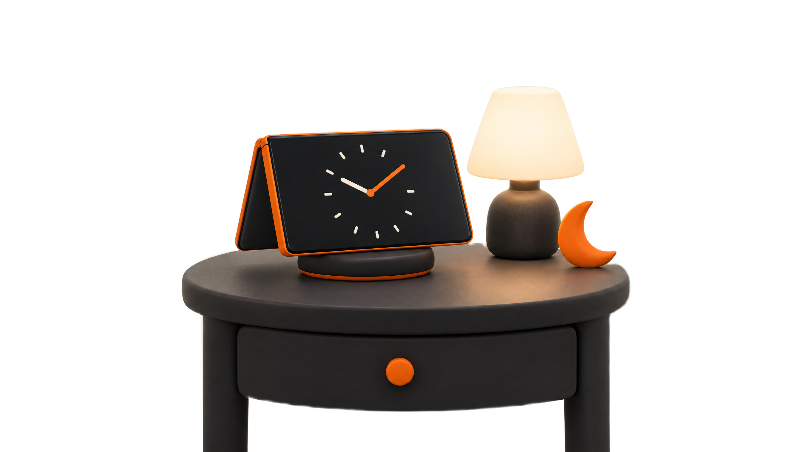
StandBy on iPhone Duo works without a charger. Apple's iPhone Duo announcement says the phone enters StandBy on either the outer or inner display when you set it down, even when it isn't charging, and describes it as a photo frame, widget hub and clock.
That is the big change from earlier iPhones. On other models, Apple's StandBy guide for iOS says StandBy starts when the locked phone is charging and set on its side.
What StandBy is on iPhone Duo
StandBy first arrived with iOS 17 as a way to turn a charging iPhone placed horizontally into a smart display, 9to5Mac notes. Apple put it plainly in its launch announcement: "StandBy gets a major upgrade on iPhone Duo."
Per that announcement, new Calendar and Weather faces join the existing Clock and Modular faces, and every face gets more colors, fonts and complications. Apple's guide lists the customization options as style, font and color, widgets, photos, clock position and appearance, depending on the face.
Which screen and which position?
Apple's guide says to lock iPhone Duo, partially fold it like a book or a tent, and set it down. Apple's Pose iPhone Duo page spells out the screens: fold it like a book and the inner display faces you in landscape, or set it down like a tent and the outer display faces you in landscape. Apple lists both postures for StandBy.
Macworld's Jason Cross wrote on launch day that in tent posture "it becomes a nice little smart clock for your desk," and that a book-style fold shows a two-page StandBy view. Apple hasn't published a list of exact hinge angles that trigger StandBy. The positions themselves are a choice in Settings > StandBy, covered in the steps. For more on the folded postures, see tent and laptop modes.
Always-On and Night Mode
Apple's iPhone Duo specs list an Always-On display for both displays. Apple's guide says the Always-On display keeps StandBy visible on supported models, while other models wake StandBy with a tap, a nudge of the table or Siri. Based on the spec page, it appears the Duo falls in the first group, though Apple's guide doesn't name the Duo in that sentence.
Night Mode, per Apple's guide, dims the screen in low light and adds a red tint. Apple pitches StandBy as a bedside clock, and Night Mode is likely the setting that makes that work in a dark bedroom.
Faces: clocks, photos, widgets and more
On iPhone Duo, Apple's guide says you tap the current face and then swipe left or right to pick another one. MacRumors adds in its how-to that some faces also accept swipes up or down to change content.
The Modular face holds widgets, and Apple says Smart Rotate changes those widgets through the day while Widget Suggestions picks them based on your usage. The Photos face has a Select option to change which photos appear or how often they shuffle. If you want ideas for what to put on that widget face, see the best widgets for two screens.
Battery: the catch with no charger
MacRumors warns that StandBy can drain the battery and suggests turning on Only While Charging if that bothers you. Apple hasn't said how much battery StandBy uses per hour on iPhone Duo.
If you do charge in StandBy, Apple's guide says StandBy remembers your preferred view for each MagSafe charging spot, so the kitchen charger can show photos while the nightstand shows a clock. Apple's specs list MagSafe and Qi2 wireless charging up to 25W. For charger picks, see the best MagSafe chargers, and for charging speeds, the iPhone Duo charging guide. Apple's own MagSafe Charger, which its spec page names for the Duo, comes without a power adapter.
Apple MagSafe Charger on Amazon ↗Coming to other iPhones in iOS 27.3
MacRumors reports that iOS 27.3 brings the Duo's StandBy features, including the updated clock faces and new Calendar and Weather faces, to iPhone 11 and newer. As of Nov 11, 2026, iOS 27.3 is in developer beta, and Apple says it will reach the public in December, according to MacRumors. MacRumors notes that on iPhone Duo, StandBy also works folded like a book or a tent without a charger, and that feature isn't in its list of iOS 27.3 additions for other iPhones. More on the beta: iOS 27.3.
A leak reported by 9to5Mac in September pointed to five more unannounced faces in iOS code, including Home Camera and Home Modular. Apple hasn't announced those faces, so treat them as unconfirmed.
Bottom line
On paper, StandBy on iPhone Duo starts when you lock it, fold it partway and set it down, no stand or cable required. The trade-off is battery, so Only While Charging is worth a look if you leave the Duo propped up for hours. We'll update this guide when iOS 27.3 ships. Which face are you using on your nightstand?
More on setup: first settings to change on iPhone Duo.
Steps
Turn on StandBy
Open Settings, tap StandBy, and make sure the StandBy switch is on, per Apple's StandBy guide for iOS.
Pick your positions
On the same Settings > StandBy screen, choose which folded positions start StandBy on iPhone Duo. Leave Only While Charging off if you want StandBy without a charger.
Set Night Mode and notifications
Still in Settings > StandBy, turn on Night Mode to dim the screen and add a red tint in low light. Use Show Notifications, and Show Preview on Tap Only to keep details hidden until you tap.
Fold it and set it down
Lock iPhone Duo, partially fold it like a book or a tent, and place it on a flat surface. StandBy starts on its own, with no charger needed.
Switch faces
Tap the current face, then swipe left or right to choose another face. Some faces also let you swipe up or down to change content.
Add or customize a face
Touch and hold a face, then tap Add to create a new one. To edit, swipe to a face, tap Customize, change options such as Style, Font, Color, Widgets or Photos, and tap Done.
Delete a face
Touch and hold a face, swipe to the one you want to remove, swipe up on it, then tap Delete.
Frequently asked questions
Does iPhone Duo need to be charging to use StandBy?
Which screen does StandBy use on iPhone Duo?
Does StandBy stay on all the time on iPhone Duo?
Will other iPhones get the Duo's StandBy faces?
Found this useful? Share it.
As an Amazon Associate, iPhone Duo Guide earns from qualifying purchases. This doesn't affect what we recommend.
Sources (9)
From Apple
- Apple NewsroomApple unveils iPhone Duo
- Apple Support (iPhone User Guide, US)Use StandBy on iPhone to view information at a distance
- Apple Support (iPhone User Guide)Pose iPhone Duo
- AppleiPhone Duo - Technical Specifications
Coverage
- MacRumorsiPhone Duo: Activate StandBy Mode When Not Charging
- MacRumorsiOS 27.3 Adding New StandBy Mode Features to iPhone 11 and Newer
- 9to5MaciOS 27.3 brings the iPhone Duo's revamped StandBy to other iPhones
- 9to5MacLeak reveals new iPhone Duo features not yet announced
- MacworldiPhone Duo: 6 highs and lows that defined my first 12 hours
Last verified
