
Home / How-to & tips / Drag and drop between apps
How-to & tips
Drag and drop between apps
iPhone Duo's Split View puts two apps side by side, so iOS drag and drop finally has room to work on an iPhone. Here's how to drag images, files and links between apps (and text, where apps support it), why drops copy instead of move, and what depends on the app.
Key facts
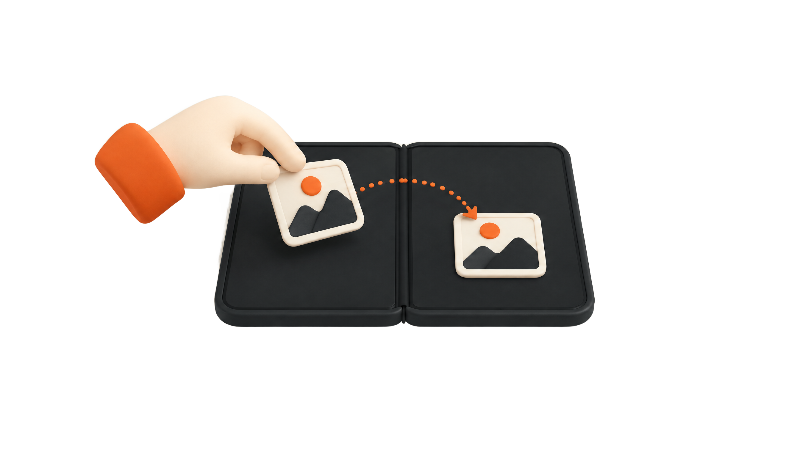
On iPhone Duo, the simplest way to drag between apps is Split View: unfold the phone in landscape, put two apps side by side, then touch and hold a photo, file or link (or selected text, in apps that support it) and drag it across the divider. Drops between apps make a copy, and whether a drop works depends on the receiving app.
Drag and drop between apps on iPhone Duo works best in Split View, where two apps share the 7.6-inch inner display and you can carry an item straight across the divider. Apple's iPhone Duo announcement calls Split View a first for iPhone, and Apple's iPhone Duo page uses drag and drop as its showcase: browse Photos on one side and "drag a picture into Mail on the other."
The feature itself isn't new. Apple added cross-app drag and drop to iPhone with iOS 15, according to MacRumors' 2021 report, after it had been on iPad since 2017. The difference on iPhone Duo is space: in Split View, the source and the destination are both on screen at once.
The steps here cover the Split View method. For setting up Split View itself, saving app pairs and closing apps, see the Split View guide.
What you can drag
Apple's example is a photo going from Photos into Mail. Engadget, in its Sept 9 hands-on, said Split View lets you "drag and drop photos and files from one app to another."
Your Mac Tech's iPhone Duo guide lists images, links and supported documents. TapSmart's drag-and-drop guide adds text, with examples such as dragging text from Safari into Messages or Mail, and photos into Notes, Pages or Mail, but it's a general iPhone guide that doesn't mention iPhone Duo or Split View. Apple's Human Interface Guidelines list text views on opposite sides of a split view as one place a drag can go, though that's design guidance for developers, not an iPhone Duo instruction. So text dragging across the Split View divider likely works where both apps support it, but no Apple or iPhone Duo source confirms it.
Apps can take drags from themselves, too. MacRumors reports that the Things 3.25 update lets you open two Things windows side by side and drag items between them. Apple says Split View can show two windows of the same app, with Safari as its example.
Drops between apps copy, they don't move
Apple's Human Interface Guidelines for drag and drop say a drag between apps always makes a copy, so the original photo, text or file stays where it was. Within the same container, such as one document or text view, a drag generally moves the item instead, per the same guidelines.
Split View panes vs. switching apps
Split View is the easy case: start the drag in one half, cross the divider and drop in the other half. Ben Lovejoy argued in 9to5Mac's hands-on follow-up that Split View makes the most sense when you're working in both apps, and gave dragging content from one to the other as his example.
Split View has limits, though. It only runs on the inner display in landscape, and the split is fixed at 50/50, according to MacRumors' Split View how-to. In portrait, The Verge's reviewers said two apps at once is basically off the table, apart from a video pinned on top of another app, as collected in MacStories' review roundup.
Outside Split View, dragging means switching apps mid-drag. MacRumors reported in 2021 that iOS 15 let you hold an item with one finger and use a second finger to switch to another app before dropping it. TapSmart's guide, last updated Oct 26, 2026, describes holding the item and using a second finger to open the App Switcher or Home Screen; its steps aren't tied to an iOS version or to iPhone Duo. Apple's iPhone Duo page doesn't mention the gesture, so treat it as something to try rather than a confirmed iPhone Duo feature.
Dragging several items at once
Apple's Human Interface Guidelines say iOS lets people select multiple items and drag them as a group, and they encourage developers to support it where it makes sense. That makes multi-item drag something each app opts into, not a guarantee.
Apple's iPhone Duo page doesn't describe a multi-item gesture, so this guide doesn't either.
What doesn't work, or depends on the app
Drag and drop is only as good as the apps on each side. Apple's guidelines say standard system text fields and text views get drag and drop built in, and they tell developers to offer another route, such as a copy command, for when dragging isn't practical. TapSmart says many third-party apps support drag and drop and suggests experimenting to find combinations that work.
Apps that haven't been updated are another variable. 9to5Mac's Zac Hall explained in September that apps not yet updated for iOS 27 run in a compatibility mode, inside a safe area on a black background. Neither 9to5Mac nor Apple's iPhone Duo pages say whether drag and drop behaves differently in that mode.
Updated apps carry a Made for iPhone Duo badge on their App Store pages, according to Apple's developer newsroom post. The productivity apps guide tracks which work apps are ready.
There's no iPadOS-style way to drag an app icon into Split View, as Chance Miller noted in 9to5Mac's iPhone Duo review, where he wished for an iPadOS-like way to drag and drop apps into Split View. On iPhone Duo, you set up the two apps first with the swipe-and-pause gesture MacRumors describes, then drag content between them.
If a drop doesn't take, these are the usual suspects:
- The item snaps back or fades away: Apple's guidelines tell developers to show when a drop fails, for example by sending the item back to its source or having it scale up and fade out, so either likely means that spot doesn't take that kind of content.
- The app won't accept it at all: Your Mac Tech suggests using Share or copy and paste instead, rather than assuming Split View is broken.
- You wanted it moved, not copied: drags between apps always copy, per Apple's guidelines, so delete the original yourself if you need to.
- Split View won't open: unfold iPhone Duo fully and turn it sideways, per MacRumors. More fixes are in the Split View guide.
Where to get help from Apple
Apple's two most useful references are the Human Interface Guidelines for drag and drop, which set out how apps should handle copies, moves and failed drops, and Apple's iPhone Duo page, which uses dragging a picture from Photos into Mail as its example. Apple's iPhone User Guide does have a Move items with drag and drop on iPhone page, but it's from an older iOS: its only editions are iOS 12 and iOS 13, it covers dragging within an app, and it doesn't describe Split View on iPhone Duo.
For one-on-one help, the Apple Support app lets you chat with Apple to troubleshoot or follow guided, step-by-step fixes, according to its App Store listing. The support section collects other iPhone Duo fixes.
Bottom line
Drag and drop isn't new to iPhone, but Split View finally gives it room on iPhone Duo. It depends on the apps involved, it copies rather than moves between apps, and the side-by-side version is limited to the inner display in landscape. More shortcuts are in the iPhone Duo tips guide. Which two apps do you drag between most?
Steps
Unfold and turn iPhone Duo sideways
Split View only runs on the 7.6-inch inner display in landscape, so open iPhone Duo fully and hold it sideways.
Put the source app on one side
Open the app that has the item you want. Swipe up from the bottom of the screen, pause briefly in the center, then keep dragging toward the left or right edge until the app settles on that half.
Open the destination app in the other half
The other half shows a Home Screen; tap the app you want to drop into. You can also start from the Home Screen: touch and hold an app icon and tap Open in Split View, then tap the second app on the Home Screen that appears in the other half.
Touch and hold the item
In the source app, touch and hold the photo, file or link you want to move (selected text works in apps that support it). Apple's own example is dragging a picture from Photos into Mail.
Drag it across the divider and let go
Without lifting your finger, drag the item into the other app and release it where you want it. Apple's guidelines tell apps to show whether a spot can take the item, for example with an insertion point or a highlight. The drop makes a copy; the original stays in the source app.
Use a fallback if the drop fails
If the item snaps back, fades away or nothing happens, the receiving app likely doesn't accept that kind of drop. Use Share or copy and paste instead.
Save the pair if you do this often
Tap the divider between the two apps to save them as an app pair, so they open side by side next time.
Frequently asked questions
Can you drag and drop between apps on iPhone Duo?
Does drag and drop move or copy content between apps?
Does drag and drop work when iPhone Duo is folded?
Why won't an app accept my drop?
Found this useful? Share it.
Sources (18)
From Apple
- AppleiPhone Duo
- Apple NewsroomApple unveils iPhone Duo
- Apple NewsroomDevelopers bring incredible new app experiences to iPhone Duo
- Apple DeveloperDrag and drop (Human Interface Guidelines)
- Apple SupportMove items with drag and drop on iPhone (iPhone User Guide, iOS 13; older iOS, no current edition)
- AppleApple Support (App Store listing)
Coverage
- MacRumorsiPhone Duo: Open Two Apps Side by Side and Lock Them As an App Pair
- MacRumorsThings Updated for iPhone Duo With Adaptive Layout
- MacRumorsiOS 15 drag and drop across apps
- 9to5MaciPhone Duo review: The future is foldable
- 9to5MacHands-on time with the iPhone Duo still leaves me wowed
- 9to5MacHere's how iPhone Duo treats apps not optimized for the foldable display
- EngadgetiPhone Duo hands-on: Apple's most exciting device in a decade
- MacStoriesiPhone Duo Review Roundup: Great Hinge, Messy Apps, and Everybody Misses Face ID
- iClarified7 iPhone Duo tricks to try
Makers and developers
- Daring FireballThe iPhone Duo
- TapSmartHow to drag and drop content between apps
- Your Mac TechGetting More from iPhone Duo: Split View, App Pairs, Touch ID & Apple Pencil
Last verified
